
The 7 key points to create an optimized Google Shopping feed for your e-commerce brand
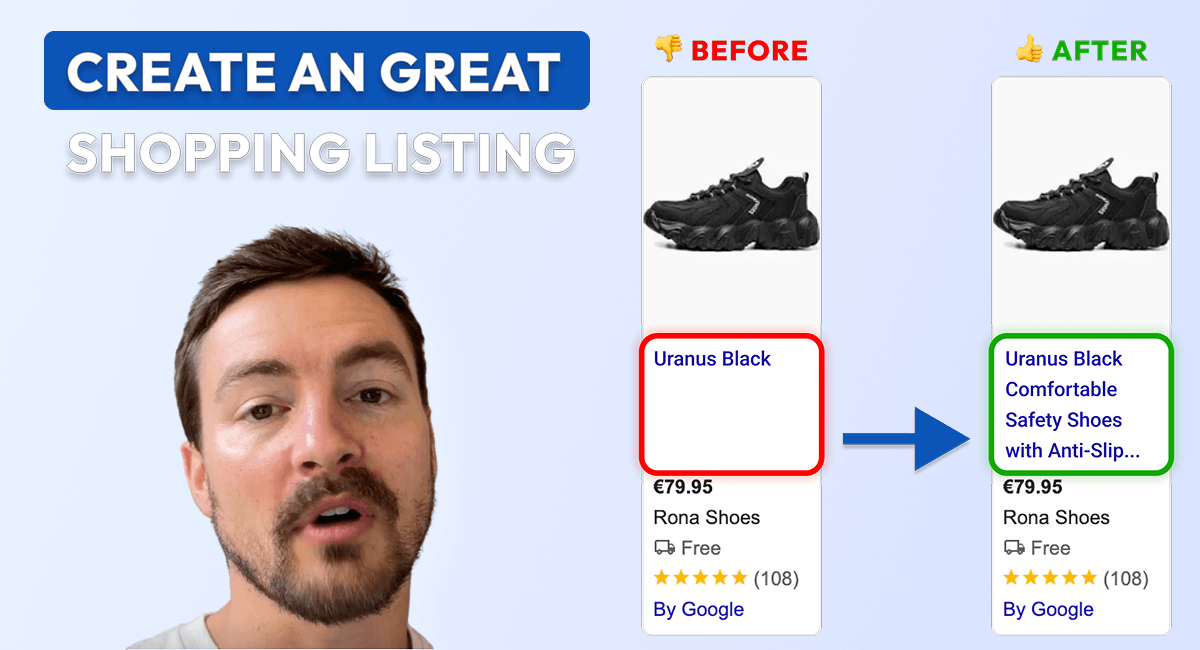
This article shows the seven key steps to create and optimize a Google Shopping listing for any only store
The 7 key points to create an optimized Google Shopping feed for your e-commerce brand
What is a Google Shopping feed?
A Google Shopping product feed is what lets you send all your product information straight into your Google Ads account.
To do this, you’ll need to follow Google’s specific naming conventions using a Google Merchant Center account. This helps structure all your product data properly.
There are plenty of ways to create a product feed, but the most popular route is using an automated feed. All you have to do is connect an app to your CMS and follow the setup process.
The biggest perk of this method? It keeps your product info completely in sync. If you make a change on your website, Google finds out about it automatically.
"If I'm not running ads, I don't need a feed."
This is... FALSE!
Google actually offers what they call free listings, which show up under the "Shopping" tab on Google search results.
Displaying your products here won't cost you a dime. Here is how it breaks down:
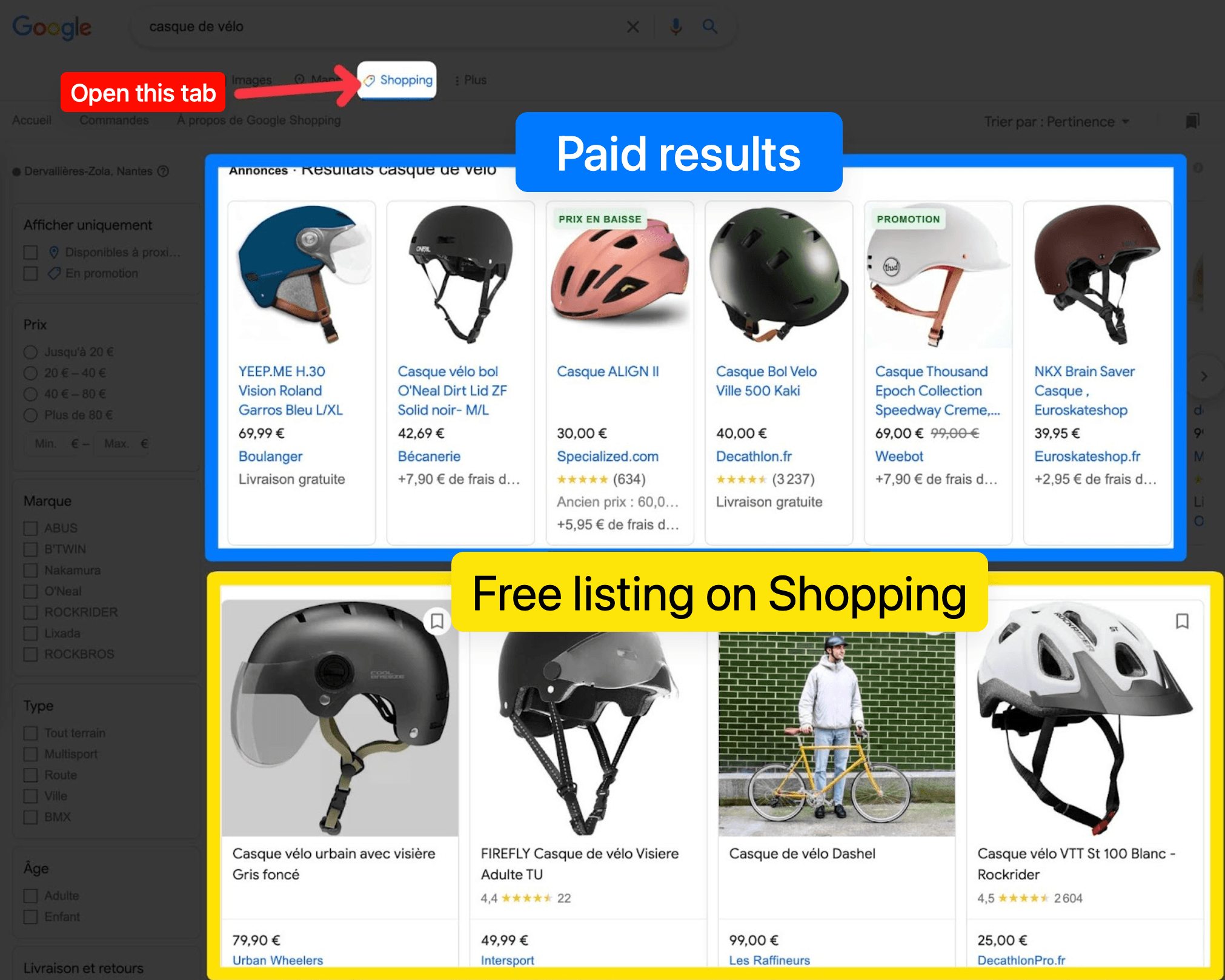
In the Shopping tab, you’ll spot the paid listings (usually at the top) and the free listings right below them.
Now, full disclosure: these free listings aren't going to completely revolutionize your e-commerce sales overnight. Their reach is still pretty limited right now. But hey, it's free exposure, so why leave money on the table?
That being said, outside of the free listings, the real superpower of a Shopping feed is running targeted ads through Google Shopping campaigns.
Which is the perfect transition into how you can actually optimize your feed!
Why optimize your Shopping feed?
Optimizing a product feed is a step that e-commerce stores often skip because, let’s be honest, it can be incredibly tedious, time-consuming, and meticulous.
But that is exactly where a ton of hidden profit lies.
Broadly speaking, there are three major reasons why you should optimize your feed:
- Improving your ad visibility
- Making your Google Ads campaigns way easier to manage
- Boosting your ad click-through rate (CTR)
All three of these are equally important. Let’s break them down to see how they impact your business.
1. Improve your ad visibility
When you run Google Shopping ads, you don't actually get to pick the keywords your ads show up for. Instead, Google automatically selects queries it thinks are relevant.
To figure that out, it primarily looks at three things:
- Your product title (and the keywords packed inside it)
- The Google Product Category
- Your product description
If any of these elements aren’t set up correctly, Google gets confused. It might start showing your ads for less relevant searches, which quickly tanks your ad efficiency and ROI.
Action Item: At the very least, double-check and optimize these three elements for your best-sellers.
2. Make your Google Ads campaigns easier to manage
Imagine you have a product feed with over 200 items spread across 3 different product categories.
You want to promote "Category 1" using a Performance Max campaign on Google Shopping. When setting up the campaign, you decide to filter it to only include products from Category 1.
But if your feed isn't optimized and your categories aren't syncing properly, you're stuck selecting every single product reference manually, one by one.
Not only did you just waste a massive chunk of your day, but it gets worse: the moment you add new products to Category 1, your campaign configuration is outdated. You'll have to go back into Google Ads and manually add those new items all over again.
In this example, we’re only talking about one category. Multiply that by several categories, and it turns into an absolute nightmare. Ultimately, your campaigns will be less segmented and less effective.
This is a daily battle I fight when managing Google Ads for my clients. Trust me: structure your feed properly for the sake of your campaigns.
3. Boost your ad click-through rate (CTR)
Not all Google Shopping ads are created equal—some look way more appealing than others.
By optimizing your feed, you can make your ads look incredibly click-worthy. Here are the elements you can play with:
- The product photo: Aim for a high-quality image that genuinely stands out from the crowd.
- The price: Make sure your pricing is competitive with everyone else on the page.
- Promotions: Ensure your sales sync properly so Google displays a strikethrough price and a "Sale" badge.
- Shipping: You can showcase shipping costs directly. If you offer free shipping, make sure it’s highlighted!
- Reviews: Shopping listings feature a star rating system. To get these, make sure your review tool is compatible with Google Seller Ratings and that your products have proper GTINs (barcodes) assigned.
- Store pickup: If you have a physical retail location, you can push information about in-store pickup or curbside collection.
What should you prioritize in your Shopping feed?
To get the most out of your Shopping feed, you need to know exactly where to focus your energy.
Conveniently, Google has shared a checklist highlighting the 9 most crucial elements for optimization.
Here they are, ranked in order of importance:
- Product Title
- Product Price
- GTIN / MPN & Brand
- Product Description
- Image
- Shipping & Return Policies
- Custom Labels (custom_label)
- Promotions
- Customer Reviews

In this post, I’m going to break down exactly what you need to do for each of these points.
That said, I’m actually not going to go through them in this exact order. It’ll be much easier to follow and wrap your head around if we mix things up a bit (yes, I know that sounds a little backwards, but bear with me!).
⚠️ A quick word of warning:
You’ll quickly notice that some of the optimizations we're about to cover can be incredibly time-consuming. Don't overwhelm yourself! Focus on your best-sellers first, and then gradually roll out the changes to the rest of your products over time.
Optimizing your product titles
Your product title is the single most important element of your feed, and that’s down to two major reasons:
1) It’s the heaviest ranking signal: This is what Google’s algorithm relies on most to decide whether a user's search query matches your product.
2) It’s front and center for shoppers: It’s one of the first things potential customers read, meaning you can use a bit of copywriting to drive more clicks.
The 2 types of product "hooks"
Before you start rewriting your titles, you need to figure out the main "hook" or entry point for your product. Usually, shoppers search based on one of two things:
1) The Brand: Shoppers want a specific name brand. For example, a "Bose QC45 Headphone" is brand-driven because people are searching for that exact make and model.
2) The Product Type: Shoppers want a specific solution, regardless of who makes it. For example, a "Velo Bike Helmet with Visor" is product-type driven. People just want a helmet with a visor and couldn't care less about the brand name.
Depending on which hook fits your product, you should structure your titles using these proven formulas:
- Brand-driven formula: Brand + Product Type + Attributes (Color, Size, Material)
- Product-type driven formula: Product Type + Attributes + Brand (if relevant)
⚠️ Note:
Keep in mind that your catalog might be a mix of both. You don't have to force every single product into the exact same mold if it doesn't make sense for how people search.
Picking the right keywords
To nail your titles, lean on the keyword research you did before launching your Google Ads campaigns. Tools like Google Keyword Planner or SEMrush are perfect for finding out exactly how people phrase their searches.
Once your campaigns have been running for a bit, you can also dig into your Search Terms Report in Google Ads. Look for the exact phrases that are already driving conversions and weave those directly into your titles.
Respecting title length limits
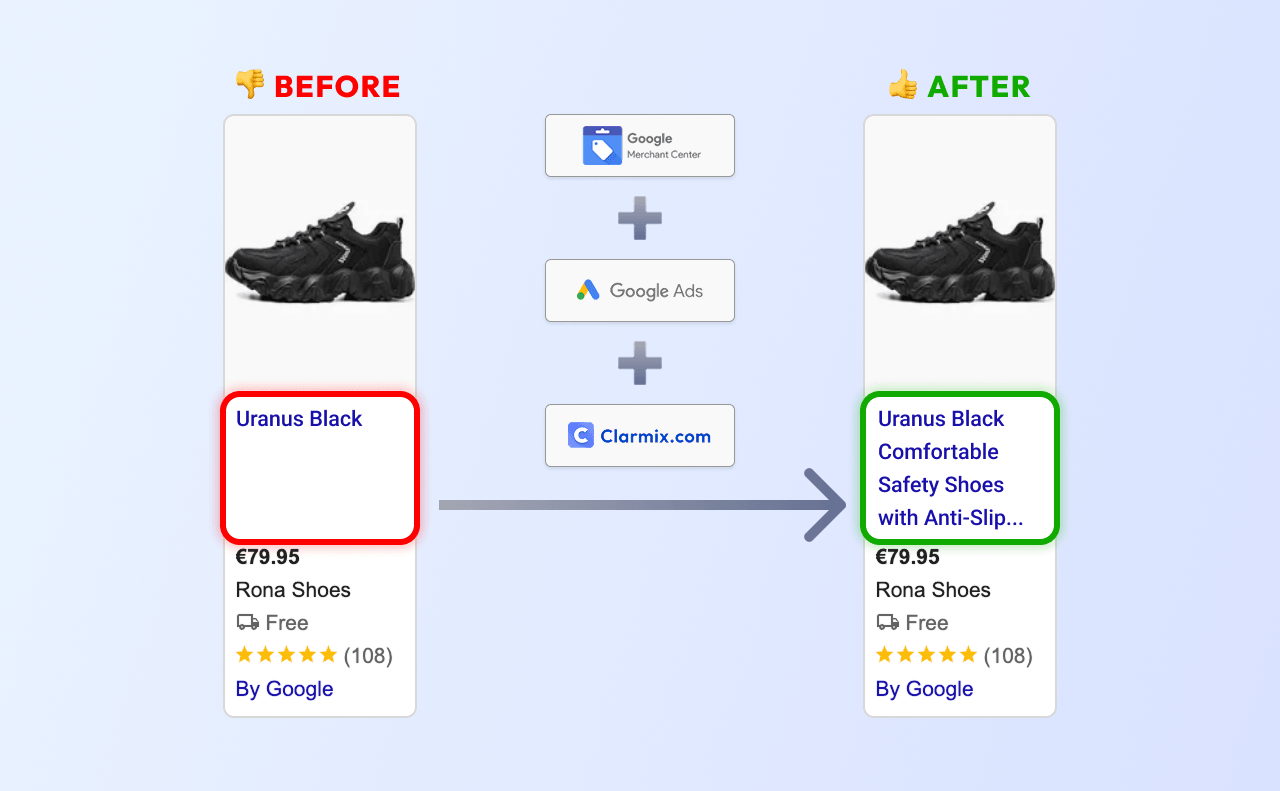
Google gives you up to 150 characters for your title—so make sure you use them!
However, there is a catch: only the first 30 to 40 characters are actually visible to users browsing the Shopping tab.
- The beginning of your title is for the shopper. It needs to hit their exact search intent and entice them to click.
- The rest of the title is for the algorithm. Use the remaining space to pack in secondary keywords and attributes that help Google categorize and rank your product, even if they get cut off on the screen.
Whatever you do, don't pull a "MyCityShopping" (from the example above) with a generic, unoptimized title that says absolutely nothing to the buyer or the algorithm!
Optimizing your Shopping feed descriptions
Good news: this part is going to be way shorter than the section on titles!
Google gives you up to 5,000 characters for your product description. Since this text isn't easily visible to shoppers at first glance on Google Shopping, you can absolutely get away with writing longer copy.
Think of your description as an SEO text, but specifically tailored for the Google Shopping algorithm. The main goal here is to craft a well-structured description packed with the important keywords from your semantic research.
Nothing more, nothing less.
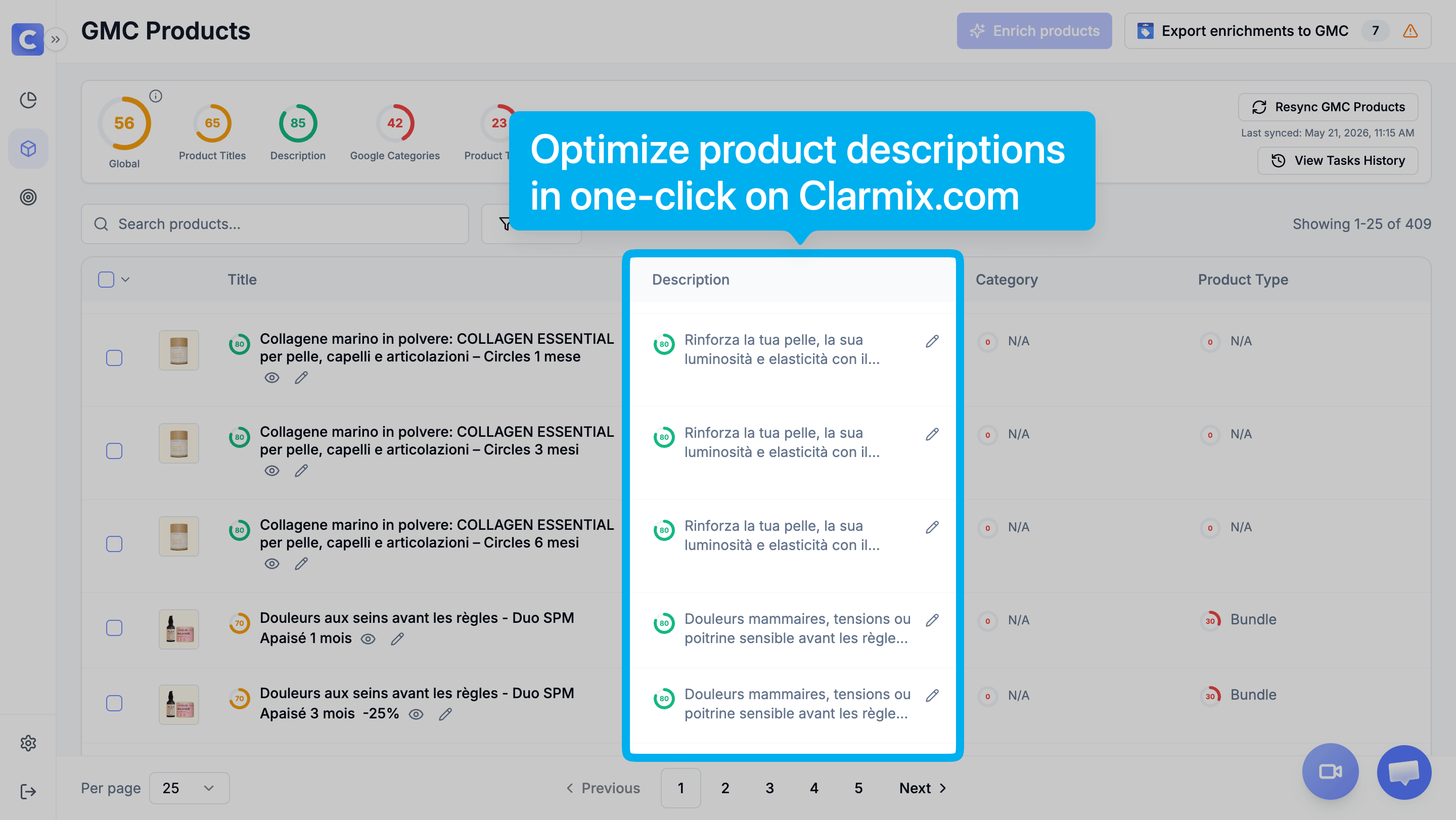
💡 Quick Hack:
Don't have good descriptions ready to go for Google Ads? Just tap into ChatGPT. With a high-quality prompt, you can easily generate deeply detailed, optimized descriptions for every single one of your products in no time.
Having the right price in your Shopping feed
Let's not forget that: Google Shopping is a price comparison engine.
If multiple stores are selling the exact same item (meaning they share the same GTIN), Google is naturally going to favor the one with the more competitive price.
Most of the examples I’m about to give apply specifically to multi-brand retailers and resellers, because price competitiveness is absolutely cutthroat for these kinds of products.
Imagine you’re selling a red Cabaïa backpack for $5 less than your competitor. There’s a very high chance Google will give you better visibility—and an even higher chance that the customer will choose to buy from you. Price is a make-or-break factor when you're selling identical products as everyone else.
On the flip side, if you sell your own unique, private-label products on your site, you won't be nearly as vulnerable to these constant price wars.
Monitoring market prices right from Merchant Center
To stay competitive, you need an easy way to keep an eye on your direct competitors' prices.
Luckily, Google Merchant Center comes with a fantastic free tool called Price Competitiveness. This section gives you both a big-picture and a timeline view of how your pricing stacks up.
You’ll be able to see exactly what percentage of your products are priced below, at, or above the market average. To do this, Google calculates a "benchmark price" for every single GTIN.
If you want to dig deeper, the tool also highlights data specifically for your highest-performing items. You’ll get access to handy charts showing:
- Your top 5 products with the most clicks
- The top product categories drawing in clicks
- The most clicked-on brands
- The top-performing product types
Think that’s still a bit too broad? No worries! You can drill down to an incredibly granular level to see pricing insights for:
- Every single product SKU
- Every brand
- Every product category
- Every product type
What should you do if your prices are too high?
Option #1: Drop your prices
It sounds obvious, but if you’re too expensive, the most direct fix is to lower the price on your website to be more competitive. Note: You cannot just lower the price in your Shopping feed alone. Google cross-references your feed with your website, and if they don't match, your product will get flagged and disapproved.
Option #2: Outshine your competitors elsewhere
If you can't or don't want to lower your price, you need to make your ad look better than theirs. You can do this by having:
- Way better product photos
- More (and higher) customer reviews
- Free shipping (or at least cheaper shipping than your rivals)
Option #3: Run a promotion
Using a promo badge can work wonders—and that’s actually exactly what we’re going to talk about next!
⚠️ Just a quick heads-up:
The insights in the Price Competitiveness tool only work when Google can match identical GTINs. If you sell products without a GTIN, or if you’re the exclusive seller of your products, Google won't be able to track market benchmarks for you.
Making the most of promotions in your Shopping feed
The promotions feature on Google Shopping is an absolute powerhouse. It lets you showcase ongoing deals directly on the search results page before a user even clicks through to your site.
When set up right, your ad will feature a strikethrough price, a dedicated "Sale" badge, and the discounted price highlighted in green.
It looks incredibly striking on the screen and is a massive tool for boosting your click-through rates!
.png)
How to trigger sale badges
To get these badges to show up, your feed needs to pass a specific discounted price attribute to Google. This is what signals to the algorithm that the product is actually on sale.
Most modern CMS platforms and feed managers handle this connection perfectly out of the box, but I’ve run into a few websites where the discounted price fails to sync properly.
Pro Tip: Go double-check your feed settings right now. It takes two minutes, costs nothing, and will completely save your skin during your next major holiday sale or peak shopping season.
If your sale badges still aren't showing up despite your feed being connected, it’s likely because you're tripping over one of Google's strict policy rules:
- The product has been on "sale" for more than 30 days: Google will flag this and consider it a permanent or fake promotion.
- The discount is less than $5 or 5%: Google deems the price drop too small to count as a genuine incentive for shoppers.
While these are the two main culprits, there are a handful of other guidelines. If you're stuck, it's well worth skimming through the official Google Ads documentation on merchant promotions.
Other promotion types in Merchant Center
The strikethrough price method mentioned above is great, but it's a bit restrictive because it requires you to physically alter the price tags on your website.
Fortunately, you can set up entirely different types of offers directly inside Google Merchant Center by navigating to Marketing > Promotions.
In this section, you can build classic retail offers like:
- Amount-based discounts (e.g., $10 off)
- Percentage-based discounts (e.g., 20% off)
- Free gifts (e.g., a free item, gift card, or bonus product from your inventory)
- Free shipping
You can even display specific promo codes right on Google Shopping. For instance, you could test out exclusive "welcome codes" meant only for users coming through your Google Ads.
For every promotion you build in Merchant Center, you can handpick exactly which products the deal applies to.
Note: If you have a massive product catalog, I highly recommend using supplemental feeds to map these promotions out easily without making yourself dizzy doing it manually!
How to properly use GTIN and MPN in your Google Shopping feed
What on earth is a GTIN?
GTIN stands for Global Trade Item Number. Simply put, it’s a unique number used to identify a specific product on an international scale.
The exact structure of this code varies depending on where you are. In Europe, we generally use the EAN format, while in the US, the UPC format is standard.
The most common place you'll see these numbers is right beneath the barcodes on physical retail packaging.
Why are GTINs a game-changer for your feed?
In a Shopping feed, GTINs do exactly what they were originally invented to do: act as a universal fingerprint.
Google uses these codes as a unique identifier to connect the dots between identical products sold across different e-commerce sites and retailers.
This is incredibly beneficial for a few major reasons:
- Price Comparison: This is exactly how Google powers the Price Competitiveness tool in Merchant Center that we looked at earlier. It lets Google compare apples to apples.
- Deep Algorithm Understanding: Imagine Merchant A takes the time to write a deeply detailed product description, but Merchant B only writes a single line. Because they share a GTIN, Google can combine all the data it collects about that product globally to better understand what it is—which ultimately boosts ad performance for everyone.
- Enriching Shopping Listings: Similar to the point above, if you add specific features like product_highlight, Google might use those key selling points to enrich listings across the platform for that item.
- Pooling Customer Reviews: This is where the magic happens for social proof. Google aggregates all customer reviews for a specific product across the web. That’s why you might see a product with thousands of stars on Google Shopping, but only a handful when you click through to the actual retailer's site.
The Bottom Line: GTINs are one of the easiest ways to instantly improve the quality and authority of your ads. If you have them, make sure they are in your feed!
Don't have a GTIN? Use the MPN instead
If your products don't have a GTIN, there is a backup plan: the MPN (Manufacturer Part Number).
While an MPN won't give you access to the full suite of Google features—like global price comparisons or aggregated web reviews—it still gives Google's algorithm a solid anchor point to figure out what you're selling and display your ads to the right audience.
Pro Tip: If you only have an MPN and no GTIN, the pressure is on your copy. Make absolutely sure your product titles and descriptions are heavily optimized and highly detailed to give Google all the context it needs!
Getting customer review stars on Google Shopping
Let's run a quick experiment. Nothing looks more like a plain red t-shirt than another plain red t-shirt, right?
But if you look at a row of Shopping ads, which one instantly catches your eye?
For me, my eyes go straight to the listings that feature those little gold stars. ⭐️
.png)
Customer reviews have a massive impact on how well your Google Shopping ads perform. In fact, a study by Trustpilot analyzed the impact of integrating reviews into a Google Ads account, and the data was pretty eye-opening:
- A +34.66% increase in conversion rate
- A -20.44% drop in cost per conversion (CPA)
Quick disclaimer: We should take these exact numbers with a grain of salt since this specific case study focused on a single e-commerce site in the Netherlands. I definitely encourage you to read the full study to draw your own conclusions, but even with that nuance, the trend is undeniable: reviews are incredibly powerful.
Why customer reviews are a make-or-break factor
Even outside of Google Shopping, reviews are the lifeblood of your store's credibility. Consider these stats:
- 88% of consumers consult online reviews before making a purchase.
- 96% of shoppers say they are actively influenced by negative reviews and a brand's overall online reputation.
Of that 96% who spot a negative review:
- 30% will abandon the purchase entirely.
- 66% will postpone their decision to buy.
At the end of the day, reviews leverage a powerful and well-known psychological trigger: social proof.
Social proof is our natural tendency to mimic the behavior and buying choices of others, especially when we're feeling a bit hesitant or uncertain about a purchase. Seeing thoughts and ratings from previous buyers acts as a huge sigh of relief. It provides instant reassurance and creates a highly persuasive shortcut for making a decision.
So, if you want your ads to stand out and actually convert, getting those stars to show up is non-negotiable!
More marketing reasons to use reviews on Google Shopping
Beyond just looking nice, there are very clear marketing reasons to get reviews onto your feed:
- Instant eye-catching visibility: Those little gold stars literally inject a pop of color into a sea of otherwise text-heavy and plain Shopping ads.
- Immediate social proof and trust: The higher your rating and the more reviews you accumulate, the safer shoppers feel clicking your link. It takes the guesswork and hesitation out of the equation.
Optimizing images on Google Shopping
The visual aspect of your Shopping ads is an absolute make-or-break factor. Why? Because the image is the single most dominant element of the ad, taking up nearly 50% of the entire listing space.
At the moment, this is one of Google's only truly visual ad formats (though they have started rolling out image extensions to other search formats recently).
The crucial role of images in your feed
Product images are what bridge the gap between a user scrolling mindlessly and the actual physical experience of holding a product in a brick-and-mortar store. They convey an immense amount of data in a literal fraction of a second.
In fact, our brains process visual information roughly 60,000 times faster than plain text.
The very second a shopper glances at your ad, your photo needs to instantly answer several rapid-fire questions for them:
- Is this the exact item I’m looking for?
- Does it match my personal style?
- Is it the right color/shade?
Because it handles all this heavy lifting, your image choices directly impact not only your click-through rate (CTR) but also how qualified your visitors are when they land on your site—which heavily dictates your final conversion rate.
.png)
Best practices for Google Shopping images
Google is notoriously strict when it comes to product imagery. To avoid getting your products hit with a sudden ban or disapproval, keep these core rules in mind:
- No promotional text: Never overlay text like "SALE," "FREE SHIPPING," or "BEST QUALITY" onto the image.
- No obstructive watermarks or badges: Keep the product clear of any trust badges, logos, or graphics that cover up the item itself.
- Show only what's being sold: Avoid crowded group shots of multiple different products that might confuse a buyer about what actually comes in the box.
- Keep it razor-sharp: Ensure your files are high-resolution. Blurry, pixelated photos scream unprofessional.
The most important takeaway is that your product needs to genuinely stand out. Avoid "messy" or chaotic shots where the item blends into a busy background.
Pro Tip: You can easily use supplemental feeds in Google Merchant Center to swap out your default website images for highly optimized, Shopping-specific variations.
Understanding Google Shopping image ratios
One tricky detail to keep in mind is that Google can and will alter your image dimensions based on the specific type of search query and device a user is on.
While the layout is square the vast majority of the time, Google also displays ads in horizontal, vertical, or rectangular formats depending on the placement.
Because Google dynamically crops your source image to fit these slots, what looks beautifully framed in a perfect square might get completely chopped up and ruined in a wide horizontal slot. Always test your image compositions and pay attention to which formats dominate your specific niche.
Standing out from the competition: The Isolation Effect
If you want to boost your CTR and leave your competitors in the dust, you need to analyze what they are doing and find a way to break the pattern.
Let's look at a quick example. If you search the word "pillow" on Google, you'll generally see three distinct styles of photography:
- The Standard White Packshot: A plain white pillow sitting on a stark white background. The product is barely visible, and it's impossible to gauge its texture or size.
- The Colored Backdrop Packshot: The product is shot against a soft, subtle colored background. This is already miles better—it highlights the edges, shape, thickness, and scale of the pillow beautifully.
- The Lifestyle/In-Context Shot: A beautifully staged bed with pillows, sheets, and maybe a model. The problem here? It introduces too much confusion. Is the ad for the square pillow? The rectangular one? The entire set? Is the duvet cover included? It creates too much friction for a quick purchasing decision.
If you had to choose between those three standard approaches, option #2 is easily the strongest. But it’s still missing that extra spark to truly dominate the page.
That spark is a psychological principle known as The Von Restorff Effect (or the Isolation Effect).
.png)
This classic marketing concept is simple: when multiple similar objects are presented, the one that differs from the rest will be the one most likely to be remembered. It completely shatters the visual pattern a user expects to see.
Imagine a row of identical black laptops, but right in the middle, there is one bright red laptop flipped upside down. Which one does your eye track to instantly? The red one, without a doubt.
You can apply this exact same psychological shortcut to your Google Shopping ads.
There is a brilliant example of a brand that does this perfectly in the pillow space. While every other competitor uses stark white or soft pastel backgrounds, they shoot their products against a vibrant, solid yellow background.
This creates an immediate "pattern interrupt." When a shopper is scrolling through a wall of bright white listings, their eyes are magnetically pulled straight to that bold yellow block.
By utilizing this effect, you achieve three huge wins:
- You become instantly visible in a category completely dominated by white space.
- Your CTR gets a massive, natural boost.
- You trigger the customer's curiosity, practically forcing them to click to see what makes your product so special.
It even builds long-term brand recall. If a user likes your product but isn't ready to buy yet, they’ll tell a friend later: "Just search for pillows on Google, it's the one with the bright yellow background." It turns your feed asset into a core brand differentiator.
The multi-brand reseller trap
If you are a retailer or reseller moving other brands' inventory, you are likely using the exact same standard distributor media kits and stock photos as all your direct competitors.
This means you are all displaying the exact same product with the exact same visual look on the exact same results page.
When your imagery is identical to five other shops, the consumer has no choice but to default to cold, hard logistics to make their choice:
- Who has the lowest baseline price?
- Who is running the best promotion badge right now?
- Who has the most gold star reviews?
- Who offers the cheapest or fastest shipping?
If your pricing or shipping setup isn't completely optimized to beat out those competitors, your campaign performance is going to look mediocre at best.
Now, to be completely transparent: a clever photo will never fully make up for a massive, uncompetitive price gap. However, a highly distinct, pattern-interrupting image can earn you a click from an intrigued buyer who might have otherwise scrolled past. And once they land on your site, you can instantly win them over with an exclusive 10% first-time buyer discount or a compelling bundle offer—suddenly rendering your competitor's slight price advantage irrelevant.
Never underestimate the raw power of the isolation effect!
Conclusion
Your product feed is quite literally your most valuable asset when it comes to scaling your e-commerce business through Google Ads. Treat it with the care it deserves, optimize it meticulously, and watch your revenue and profitability hit completely new heights.
Join our monthly tips!
Get fresh insights on Google Shopping optimization delivered straight to your inbox.
.jpeg)
.jpeg)