Which products to push on Google Ads for Black Friday

A profit-first way to choose which products to push on Google Shopping and Performance Max for Black Friday, with a worked example, custom labels and targets per group.
Push the products that leave the most profit per customer after the discount and the ad cost, not the ones that sell the most. For each product, take last year's Q4 numbers and work out: gross profit per order after the Black Friday discount, minus what it cost in ads to win that order, plus the gross profit you expect from that customer's repeat orders over the next 6 to 12 months. Then sort products into four groups (scale, protect, limit, clear), tag each group with a custom label in Google Merchant Center, and give each group its own budget and target ROAS before Black Friday on November 27, 2026 (Universal Time Date).
The idea that bestsellers can be your worst Black Friday bets comes from a LinkedIn post by Jackson Blackledge of Echelonn. This guide turns it into a Google Shopping and Performance Max setup, with our own example numbers.
Why can your bestsellers lose you money on Black Friday?
Because revenue hides three costs that grow at Black Friday: the discount, the higher cost of winning each click, and the low value of some of the customers you acquire. A product can top the sales report and still leave almost nothing once those are taken out.
Bestsellers often get the deepest discount. On a thin margin, that discount plus a higher cost per acquisition in peak week can make the first order lose money, and whether it pays back depends on what those customers buy next.
ROAS does not catch this. Two products with the same ROAS can have very different margins, so the same target ROAS can be profitable on one and loss-making on the other. That is why the selection has to start from profit, product by product.
How do you calculate profit per customer for each product?
The simplified formula in the original post is profit per customer = (customer lifetime value × gross margin) − acquisition cost − discount. It is a useful starting point, but for Black Friday it helps to split it into the first order and what comes after, because the discount and the ad cost hit the first order while lifetime value builds over months:
- First-order contribution = sale price − cost of goods − ad cost per order. The sale price is the price after the Black Friday discount.
- Repeat value = expected gross profit from the same customer's later orders over 6 to 12 months.
- Profit per customer = first-order contribution + repeat value.
Leave out overheads such as rent and salaries; include per-order costs such as shipping and payment fees if you can. The example below leaves them out to stay readable.
Worked example: four products, one store
A fictional outdoor clothing store is choosing where to put its Black Friday budget. The numbers below are invented for illustration, based on what each product did in last year's Q4.
The hoodie sells the most and posts a ROAS of 2.7, close to the base layer's 2.9. But the hoodie loses $6 on the first order and only scrapes back $4 per customer over a year, while the base layer earns $55. With a single account-wide target ROAS of, say, 3, the bidding would treat them about the same.
Break-even ROAS is the sale price divided by gross profit after discount. Below it, every sale loses money before overheads. It is the most practical number to take from this exercise, because it translates straight into a target ROAS per product group.
Which five metrics should you pull from last year's Q4?
The original post lists five metrics to review per product: revenue, gross margin after discounts, acquisition cost, repeat purchase rate, and customer value over 6 to 12 months. Here is where a Google Ads advertiser can find each one.
Google says the cost_of_goods_sold value doesn't need to be exact: a rough estimate or an average is acceptable (Merchant Center Help). If you have no cart data from last year, take margins from your store's cost data instead and do the calculation in a spreadsheet.
Acquisition cost per product is the weakest of the five numbers: in PMax a shopper may click one product and buy another, and video and display spend is not tied to any single product. Use the product's own cost and conversions, then sanity-check against the campaign's overall cost per order before you scale anything that looks unusually cheap.
What are the four product groups, and what should you do with each?
Sort every product with enough data into one of four groups. The groups come from the original post; the Google Ads plays are ours.
Products without enough Q4 history, such as new arrivals, need a fifth bucket. Leave them in your main campaign with your usual target, rather than forcing them into a group on a handful of orders.
How do you set up the four groups in Google Ads?
Use one custom label to carry the group, then build the campaign structure on that label.
1. Add a custom label for the Black Friday group
Merchant Center gives you five custom labels, custom_label_0 to custom_label_4. Each takes one value of up to 100 characters per product, with up to 1,000 unique values per label across the account, and shoppers never see them (Merchant Center Help). Pick a label you don't already use and give it four values, for example bfcm_scale, bfcm_protect, bfcm_limit and bfcm_clear.
The easiest way to add them without touching your main feed is a supplemental feed in Merchant Center with two columns: id and the label. Google notes that new or edited labels can take 24 to 48 hours to appear in Google Ads (Google Ads Help), so load them by early November, not the week of the sale.
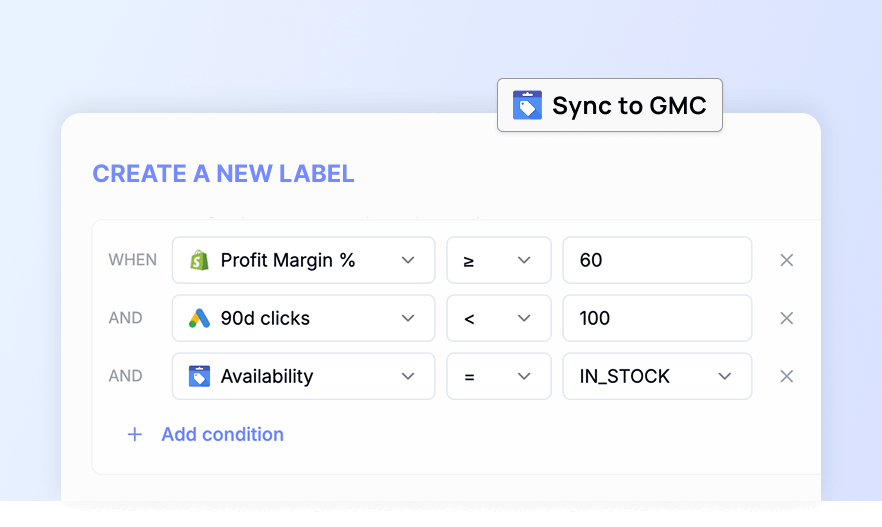
If your labels already sort products by performance, you can start from those. Clarmix's Product Labelizer labels SKUs every day as Profitable, High Potential, Low Potential, Costly, Zero Conversion or Zombies, based on clicks, target ROAS and cost per conversion, and sends the labels to Merchant Center through a supplemental feed (there is a short demo video). These labels are ROAS-based, so they are a starting point for groups 1 and 3; the margin and repeat-value columns still come from your own data. For more on the trade-offs between hand-made and automated labels, see our comparison of custom labels and automated product bucketing.
2. Split campaigns or listing groups by label
In PMax, open each asset group's listing groups, subdivide "All products" by custom label, and include only the values that asset group should serve. Google recommends exactly this: group items with custom labels, then target those labels in listing groups (Google Ads Help). Standard Shopping campaigns can subdivide product groups by custom label in the same way (Google Ads Help).
For budget control, separate campaigns work better than separate asset groups, because budget and target ROAS are set per campaign. Make sure each product sits in only one of them. When campaigns in the same account could serve the same impression, Google Ads serves the one with the highest Ad Rank (Google Ads Help), so a product left in two campaigns may run under the target you didn't intend.
3. Set budget and target ROAS per group
- Scale: the largest budget, with a target ROAS above break-even but low enough to win volume. In the example, the base layer breaks even at 1.7, so a target of 2.5 leaves room.
- Protect: a target close to the group's average break-even ROAS, and a budget sized to last year's demand, not more.
- Limit: a target at or above break-even (3.75 for the hoodie) and a capped budget. If the campaign can't spend at that target, it isn't losing money.
- Clear: no standalone prospecting campaign; the bundle or clearance product rides in the scale or protect campaign.
For the scale group, where profit depends on repeat orders, the customer acquisition goal can help. Its New Customer Value setting bids higher for new customers than existing ones and works with Performance Max, Shopping, Search and Demand Gen on target ROAS or maximize conversion value. It requires a purchase conversion goal and a definition of existing customers from first-party data, such as a customer list (Google Ads Help).
Then add the timing layer: a seasonality adjustment for the main sale days only, applied to the campaigns you are actually scaling. Our guide to Google Ads seasonality adjustments for Black Friday covers when they help and how to size them.
.png)
Which offer should each group get?
Match the discount to the group, not one sitewide percentage to every product.
- Scale: a real discount is worth it here, because the customer pays back later. Use
sale_pricewithsale_price_effective_dateso the price switches on and off by itself; without a time zone, Google uses UTC (Merchant Center Help). Our article on Google Shopping price drops and promotions for Black Friday explains what shoppers see and how to earn the price drop badge. - Protect: keep the discount small, or replace it with free shipping or a gift with purchase. These products already earn well on the first order.
- Limit: no extra discount if you can avoid it. If you must match the market, keep it on-site and out of your paid push.
- Clear: pair the slow mover with a scale or protect product as a bundle. In Merchant Center, a bundle is a main product grouped with other, different products sold together for one price, and is flagged with
is_bundle(Merchant Center Help). A dated clearance sale on the product alone is the other option.
Merchant Center promotions need lead time before they go live. The Black Friday 2026 Google Ads checklist has the dates for promotions, sale prices and budgets.
What should you do after Black Friday?
Run the same review in December, while the data is fresh, and keep the label column in place. Three checks matter most:
- Compare each group's actual first-order contribution with the estimate. Products whose ad cost per order rose the most are candidates to move down a group.
- Tag the customers you acquired with the product they first bought, so that next October you can measure their 6 to 12 month value instead of estimating it.
- Reset target ROAS and budgets to your normal levels once the sale ends and clear the Black Friday label values, or the Black Friday structure keeps running into December.
If your store runs on Shopify, Clarmix's Shopify app combines Shopify sales and margin data with Google Ads and Merchant Center data in product segments, and tracks POAS (profit on ad spend).
Black Friday product selection checklist
- Pull last year's Black Friday cost, conversions and conversion value per product from the Products tab.
- Add cost of goods, apply this year's discount, and work out gross profit after discount and break-even ROAS.
- Add repeat gross profit over 6 to 12 months from your store or CRM.
- Sort products into scale, protect, limit and clear; leave new products in your main campaign.
- Load the four values into an unused custom label through a supplemental feed by early November.
- Build one campaign per group, each product in only one, with budget and target ROAS set from break-even.
- Choose the offer per group, then review in December and keep the data for next year.
Frequently asked questions
Should you discount your bestsellers on Black Friday?
Only if the numbers still work after the discount and the higher ad cost. Work out the bestseller's gross profit after discount and its break-even ROAS. If its customers rarely come back and the first order loses money, keep the discount on-site and limit the ad spend behind it.
What is a good target ROAS for Black Friday?
There is no single number. It depends on each product's margin after the discount. Divide the sale price by gross profit after discount to get break-even ROAS, then set each group's target at or above that, lower for products whose customers buy again.
Can you use custom labels in Performance Max?
Yes. You can subdivide an asset group's listing groups by custom label and include only the values you want that asset group to serve (Google Ads Help). Custom labels work in Performance Max, Shopping and Demand Gen campaigns (Merchant Center Help).
How early should you set up Black Friday custom labels?
Load them by early November. New or edited labels can take 24 to 48 hours to appear in Google Ads (Google Ads Help), and campaigns built on new labels need time to settle before the peak days.
Sources
- Jackson Blackledge, "Your bestselling products can be the worst…", LinkedIn
- Universal Time Date: Black Friday 2026
- Merchant Center Help: Custom label 0–4 [custom_label_0–4]
- Google Ads Help: Use custom labels for Shopping ads
- Merchant Center Help: Cost of goods (cogs) [cost_of_goods_sold]
- Google Ads Help: About conversions with cart data
- Google Ads Help: About Product Reporting
- Google Ads Help: Manage a Performance Max campaign with listing groups
- Google Ads Help: How Performance Max interacts with other campaigns in your account
- Google Ads Help: About customer lifecycle goals
- Merchant Center Help: Sale price effective date [sale_price_effective_date]
- Merchant Center Help: Bundle [is_bundle]
Cover photo by Haberdoedas on Unsplash.
Join our monthly tips!
Get fresh insights on Google Shopping optimization delivered straight to your inbox.