Manage products for different countries in GMC: do's and don'ts
A practical guide to managing products across multiple countries in Google Merchant Center, with the key do's and don'ts for Shopping ads.
Managing products for different countries in Google Merchant Center means setting the countries, language, currency, shipping, and tax for each market you sell in. To sell in more than one country on Google Shopping, you can target any combination of countries within the same Google Merchant Center data source, then make sure shipping, currency, language, and prices fit each market (official docs). Small mistakes in those settings can quietly hurt performance. This guide covers what to do, what to avoid, and how to set up each country so your listings stay approved and accurate.
How Google Merchant Center handles multiple countries
Google Merchant Center now calls the setting Countries, and you edit it under the Data sources tab. You can also target countries with the shipping attribute on each product (targeting guide). Older guides refer to a target country, a primary country of sale, and additional countries. Search Engine Roundtable reported in September 2022 that Google was replacing those fields with target countries and that existing feeds and campaigns needed no changes (Search Engine Roundtable). Country of sale still exists in Google Ads, where you can choose either a feed label or the country of sale for some campaign types (official docs).
Country targeting matters because it decides where your products can show and which rules apply. Google enforces country-specific policies separately for each country, and it asks you to follow the price and tax requirements of each market (targeting guide). If a step is missed, your products may not show in the additional countries.
Free listings and Shopping ads across countries
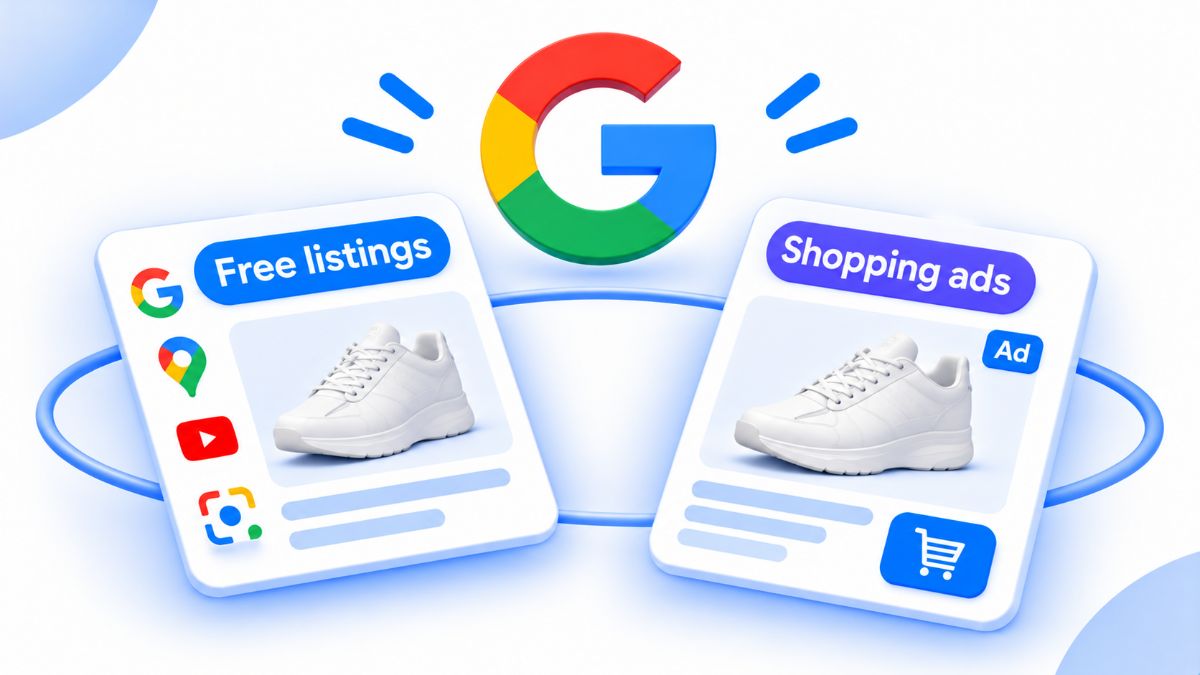
Your product data can work for you in two places. With a free listing, your products can appear at no cost on Google Search, Google Maps, Gemini, YouTube, the Shopping tab, Google Images, and Google Lens. Free listings are turned on by default in most cases, and you can check the status in Google Merchant Center under Marketing, then Marketing methods (free listings overview). Shopping ads are the paid side, and they run through Google Ads.
Availability depends on the surface and the country. For example, the Shopping Knowledge Panel is listed for a specific group of countries, and YouTube appears in limited countries (free listings overview). Check the list for each market before you promise results to a client or a team. Shipping settings, or shipping costs added to the product data, are also required in the listed countries, including Germany, France, the United Kingdom, and the United States (free listings overview).
Before you add countries: a short checklist
Before you add countries, consider how each choice will impact your Shopping ads and your Shopping campaign structure. To show products in multiple countries, you should be able to answer these questions:
- Is your product feed available in the native language of each customer? Translate titles and descriptions, and include the local currency.
- Can you configure shipping and tax for each individual market?
- Will you add countries to one data source, or keep separate feeds for each country because the languages differ?
- Which channel do you want to reach: Shopping ads, free listings, or both? Find out in Google Merchant Center Help which programs are available in each country before you plan.
Write the answers down first. Then group products by feed label so that each Shopping campaign maps cleanly to a market and you can read results by country.
Which product attributes change by country
Not every attribute needs a different value in each market, but several do. For free listings, the required product attributes are id, title, link, image_link, price, description, and availability (free listings overview). Here is how each one behaves when you add a country:
- Price: use a currency supported for the target country, and follow that country's price and tax information rules (currency rules).
- Shipping: the shipping attribute lets you target countries per product (targeting guide).
- Title and description: write them in the language of the data source.
- Link: point to a page that matches the market, including currency and language.
- Availability: update it for each market if stock differs, since the same item may be in stock in one country and not another.
Keep this list next to your feed spreadsheet. It turns a vague "localize the feed" task into a short checklist for each country.
The dos of managing products across multiple countries
Do target several countries in one data source when the products are the same
If your products stay the same across markets, you do not need a separate feed for each country. Open Settings, go to Data sources, use the three-dot menu on the data source, and select Edit countries (edit steps). That keeps updates to one place. For a deeper look at running several markets, see our page on managing Google Shopping in multiple countries.
Do use a separate data source when the language differs
Adding products in another language requires a separate data source (targeting guide). If most of your product data does not match the language of the data source, products may be disapproved (currency rules). So a store selling in Germany in German and in the United States in English needs at least two data sources, with one language per source.
Do use feed labels to organize your data sources
A feed label lets you advertise all products with the same label in one Shopping, Demand Gen, or Performance Max campaign. It can be up to 20 characters, using uppercase letters A to Z, digits, hyphens, or underscores, with no spaces. Many merchants use a two-letter country code. You set it when you create the data source. New data sources need Advanced data source management enabled under Add-ons (official docs). If you also segment campaigns with custom labels, our product labelization tool can help.
Do match currency to the target country
The docs say to use a currency that is supported for your target country, and to submit shipping information in the same currency as your prices. The Supported languages and currencies page lists the currency for each country, for example Euro for Germany and US Dollar for the United States. Other currencies may be supported through currency conversion (currency rules). Check that page before you submit a new market.
Do configure shipping for every country you target
You can specify several countries in one shipping policy, or create separate policies for each country, with up to 20 shipping policies per country. Products may be disapproved if no shipping service matches the product's currency and the country you sell in (shipping policy rules). Keep your shipping settings consistent between your account and your product data. Note that multi-country shipping settings do not by themselves change which countries you target (targeting guide).
Do localize titles and descriptions
Write titles, descriptions, and any custom labels in the language of the target country. A basic translation is a start, but real localization reflects how shoppers there search. A shopper in Germany expects German text, euro prices, and shipping that makes sense for a German address. Our guide to enriching product titles shows how to build titles that carry the words shoppers use.
The don'ts of managing products across multiple countries
Don't look for a country of sale field in your data source
Many older tutorials tell you to set a primary country of sale in Google Merchant Center. In current Help pages, the setting is Countries, and country of sale remains a campaign selector in Google Ads. If you manage a feed for several markets, confirm that the countries listed in the data source match the markets you actually plan to serve.
Don't expect to edit a feed label later
Once a data source exists, its language and feed label are fixed (official docs). If you pick the wrong label, you will need a new data source, so plan your naming before you scale.
Don't build new work on the Content API
The Content API for Shopping was sunset on August 18, 2026. Since September 1, 2026, requests without an active extension have been intermittently failing with HTTP 410, and full decommissioning is set for early 2027. You are asked to migrate to the Merchant API (Google for Developers). If you update products in several countries by script or tool, check that it uses the Merchant API.
Don't send every country to one generic landing page
This is our recommendation, not a Google rule. A landing page should reflect the local currency, language, and any regional details such as taxes. A shopper who clicks an ad with local pricing should land on a page that shows the same currency.
Connect Google Merchant Center to Google Ads
You need to link your Google Ads account and your Google Merchant Center account before you can create Shopping campaigns. In Google Merchant Center, go to Settings, then Access and services, then Apps and services, and add Google Ads as a service. A Google Merchant Center account can link to up to 500 Google Ads accounts, and a campaign can link to only one Merchant Center account (linking guide). Once linked, a Shopping campaign selects products by feed label or by country of sale (official docs), so your naming choices in Merchant Center carry straight into your campaign structure.
Example: a store selling in three countries
Here is a simple setup for a store that sells in the United States, Germany, and France. It is an illustration, not a Google template. Because the languages differ, each market gets its own data source with a feed label that is easy to read in campaign settings (official docs).
If you also sold the same products in German to Austria, you could target Germany and Austria from one German-language data source instead. Shipping policies can then cover both countries, or you can create one policy per country when costs differ. The point is to decide the structure before you upload.
Three common causes of disapprovals when you add a country
Most problems after a new market launch trace back to three issues: shipping, language, and country-specific policies.
Check the shipping match (shipping policy rules), the data source language, and the country-specific price and tax requirements first whenever Diagnostics shows a spike in issues for a single country.
How to add a new country in Merchant Center
- Decide whether the products are the same and the language matches your existing data source. If so, add the country there. If not, create a new data source with its own feed label.
- Open Settings, then Data sources, and select Edit countries from the three-dot menu (edit steps).
- Configure shipping for the new country and use the same currency as your prices.
- Check the price and tax requirements for that market, then review Diagnostics for disapprovals or warnings tied to the country.
- Run a small test campaign first. It confirms that ads show, prices match, and traffic reaches the right landing pages before you commit a larger budget.
If you still need to set up the account itself, read our Merchant Center account guide. For stronger data in every market, the 7 key points of an optimized feed and the Google Shopping feed optimization guide apply to each country you add.
Common questions about selling in multiple countries
Do I need feeds for each country?
Not always. If the products and the language are the same, you can add additional countries to one data source through the Countries field. You need separate feeds for each country when the language differs (targeting guide).
Can I submit one product feed to several markets?
Yes, with products in multiple countries targeted from the same data source. You still submit shipping and price information that fits every individual market, and policies apply to each country separately.
Which channel shows my products for free?
Free listings. Products can appear at no cost on surfaces such as Search, the Shopping tab, Images, and YouTube, which can bring extra traffic without ad spend (free listings overview). Availability varies by surface, so check each one.
Which code do I use for a feed label?
Many merchants use a two-letter country code, which the docs describe as an option for the feed label. You can pick any allowed string up to 20 characters (official docs). Choose the one your campaign team will recognize at a glance.
Should I still use the Content API?
No. Use the Merchant API, since the Content API for Shopping was sunset on August 18, 2026 (Google for Developers).
Final thoughts
Selling in several countries is mostly about consistency: the right countries on the data source, the right language per source, matching currency, and shipping that fits each market. Do that work once and updates become easier in every market. If you want help enriching and localizing product data at scale, see Clarmix feed enrichment.
Sources
- Show products in multiple target countries (official docs)
- Add additional target countries to a product data source (official docs)
- Use feed labels to advertise products from specific product data sources (official docs)
- Supported languages and currencies (official docs)
- Set up shipping settings for an entire account (official docs)
- Content API for Shopping deprecation and sunset (Google for Developers)
- Google Merchant Center no longer needs primary country of sale and additional countries fields (Search Engine Roundtable, September 15, 2022)
Join our monthly tips!
Get fresh insights on Google Shopping optimization delivered straight to your inbox.