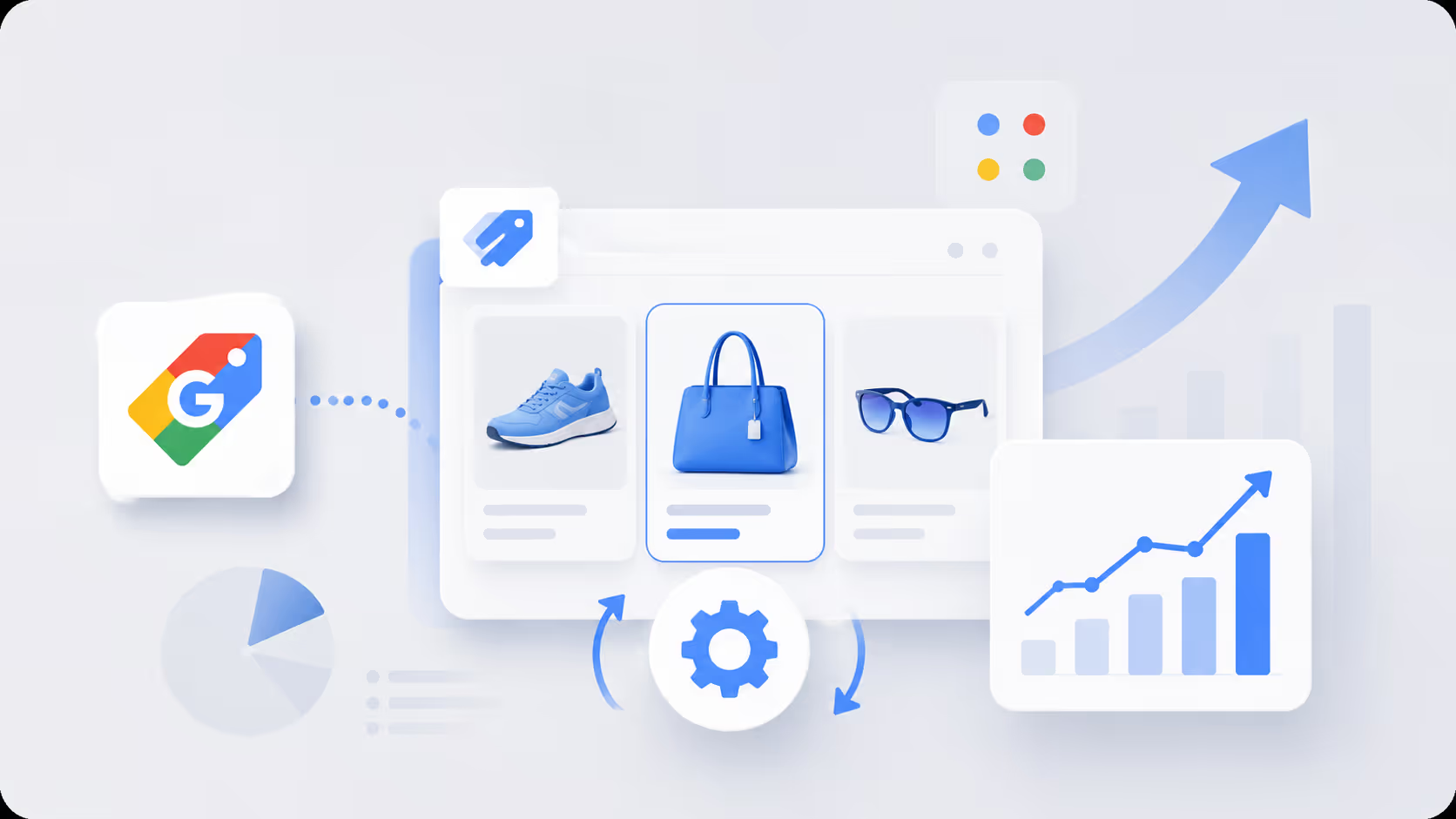
5 hacks to improve your organic shopping carousels on Google

Learn 5 hacks to improve your organic shopping carousels on Google: better titles, images, product data, reviews and fresh prices for free listings.
Organic shopping carousels are rows of free product listings that Google displays in Search and on the Shopping tab without a per-click charge. If your store is not showing up in these carousels, five hacks can improve your visibility: better titles, stronger images, complete product data, trusted reviews, and fresh price and shipping information.
Many merchants set up free listings, then leave the product feed untouched for months. The outcome is weak impressions and few clicks. Each of the five hacks below is simple to apply, and each one helps both your free listings and your Google Ads campaigns, because both use the same product data. If you have not activated free listings yet, start with our guide to 6 steps to activate free listings in Merchant Center.

The 5 hacks at a glance
Write product titles that match what shoppers search.
Upgrade your product images.
Complete your product data and identifiers.
Collect product reviews and add structured data.
Keep price, availability, and shipping settings in sync.
What are Google Shopping free listings and organic carousels?
Free listings are organic product results. Google says they may show on Search, Images, Lens, YouTube, Gemini, and the Shopping tab. According to Search Engine Land, Google began including free listings in Shopping results in April 2020, after eight years in which Shopping was an advertising-based service. Today, a merchant can show products for free by sending a product feed to a Google Merchant Center account.
Free listings can appear in carousels, product grids, and rich results, but Google states that your products aren't guaranteed to show across Google. The quality of the product data you send decides how often they appear. That data also feeds Google's Shopping Graph, which Google said in May 2025 held more than 50 billion product listings, and Shopify's guide to Google AI shopping notes that Merchant Center data is what powers it.
Free listings vs. Shopping ads at a glance
| Feature | Free listings | Shopping ads |
|---|---|---|
| Cost | No per-click charge | Paid per click in Google Ads campaigns |
| Where products appear | Free listings on the Shopping tab, Images, and YouTube | Paid placements above and beside free listings |
| Your control | Quality of product data, images, and reviews | Bids, budgets, and campaign settings |
Why organic carousels matter for your business
For a small business, a free listing is one of the few channels that adds impressions without adding ad spend. A shopper who searches for a specific product sees a row of products, taps one, and lands on a product page. If your store appears in that row, you earn a visit at no extra cost. Organic carousels also give you a steady base of traffic that does not stop when a budget ends, and shoppers who first see your product in a free listing may return later through an ad or a direct visit.
Hack 1: Write product titles that match search intent
The title is the first thing a shopper reads in a carousel, and it helps Google match your products to a search. The team at Prisync calls the title a top priority and recommends adding the essential keywords customers use, then measuring whether traffic changes. Strong titles include the product type, the brand, and the detail that makes the product different, such as size, color, or material.
Follow Google's title rules. The maximum length is 150 characters, but users usually notice only the first 70 or fewer, so put the key terms first. Avoid capital letters for emphasis and promotional text, since both can cause a disapproval. For a step-by-step method, read how to enrich product titles in Google Merchant Center.
Study your search data before you rewrite a title. Look at the search terms that already bring impressions and clicks, then base the new title on the words people really use. Test one edit at a time, and give each test a few weeks, since feed updates take time to show in reports.
Hack 2: Upgrade your product images
A clear image earns the click, while a poor one sends the shopper to a competitor. The Cake Agency recommends including a variety of flat lays and lifestyle shots that are high quality and appropriately sized.
Use the main image to show the product itself. Google's image requirements rule out watermarks, promotional overlays, and placeholder graphics, so replace every image that says "coming soon." Google also requires images of at least 500 x 500 pixels, with enforcement beginning January 31, 2027. Add extra images to show detail, scale, and use. If your store runs on Shopify, check that the image it sends to Google is your best one and that every variant has its own image.
Hack 3: Complete your product data and identifiers

Google reads your product feed to learn what you sell, so each product needs the required attributes: ID, title, link, image link, price, description, and availability. Depending on the category, you will also need brand, condition, shipping, and a GTIN or MPN. Optional attributes such as color, size, material, and age group give Google more ways to match your products to a search.
Identifiers deserve special attention. Google says products with missing or incorrect GTINs may have limited visibility, and Prisync notes that Google groups sellers who share a GTIN in Shopping results. Choose the most specific Google product category, and give each product a product type that is at least two to three levels deep.
Descriptions matter as well. The Cake Agency suggests about 150 to 200 words that are concise and accurate. Describe the product clearly and explain how customers use it. If you manage a large catalog, Clarmix feed enrichment can audit and improve titles, descriptions, and categories across thousands of products, and push the changes to Merchant Center through a supplemental feed.
Hack 4: Collect product reviews and add structured data
Reviews build trust, and trust leads to clicks. Shopify's guide says Google's AI shopping results consider customer reviews and ratings alongside product attributes, so collect a review from every customer after delivery and respond to them. Reviews also add fresh content to the product page.
Structured data helps Google read your pages. The Cake Agency recommends implementing structured data markup on every product page and checking it with Google's Rich Results Test. Add schema.org Product markup with the price, availability, and rating, and keep it consistent with your feed. Keep your return policy visible too, since Google expects return information for free listings.
Hack 5: Keep price, availability, and shipping in sync
A carousel shows the price and availability, so any gap between your feed and your site creates a problem. Google flags a mismatch as an error, and a disapproved product cannot appear. Update the feed whenever a figure changes, and use the Merchant API, which supports frequent partial updates to attributes such as price and availability, for products that sell fast.
Check your shipping settings as well. Shipping information is required for free listings in many countries, and Google lists them on its page about why you need to add shipping information. Add accurate costs and delivery windows, because shoppers compare them before they click.
Price also affects visibility. Prisync notes that promotions can help attract customers, and our guide to Google Shopping price drops and promotions shows how to run them. Run a sale when it fits your margin, then compare the impressions and clicks you receive.
Shopify tips for organic carousels
If your store runs on Shopify, the Google and YouTube channel syncs your products and store data with Merchant Center. Still, check what it sends. Shopify titles are often written for the store theme, not for search, so edit the title field or use a feed rule to add the brand and key attributes. Confirm that each variant has its own price, image, and availability.
Common mistakes that keep products out of carousels
Titles that repeat the same words for every product, which makes it harder for Google to match a specific search.
Feed values that differ from your site, which triggers an error and a disapproval.
Low-quality or placeholder images, which reduce clicks and can block approval.
Missing shipping or return information.
Ignoring the Diagnostics report until a warning becomes a disapproval.
Check eligibility and product page quality
Before you work on titles or images, confirm that your products are eligible. Free listings follow Google's policies, so check the approval status of each item in Merchant Center and fix any issue it flags. In that case, an item with a policy problem cannot appear in a carousel no matter how strong the content is. Only product pages count: the link in your feed must point to a page where shoppers can buy that exact item, and the price on the website must match the feed.
A strong product page also improves the shopping experience. Make sure each page shows relevant details such as size, color, and age group where they apply, includes a clear image, and loads without errors. Add your return and shipping information in Merchant Center and on the website, so Google can display accurate details next to the item. Complete attributes help Google match the item to the right searches.
If you run multiple stores or markets, review eligibility for each one, since the same item can have a different status in a different country. When you list your products on several channels, remember that you should still send products to Google through one feed, with the free listings destination switched on. The Google Merchant Center account status page shows whether free listings can appear for your store, and the support center explains each policy and how to follow it. Choose a weekly time to check the status, because a disapproval you catch early costs far fewer impressions. These checks help Google Shopping free listings stay stable: products appear more often when data is complete, relevant, and consistent with the website, and the content on the page backs up the feed. Watch for a sale price that ends on the website but not in the feed, since that mismatch can display the wrong price and lead to a disapproval.
Monitor impressions and disapprovals
The five hacks work best when you measure the outcome. The Performance report in Merchant Center shows impressions and clicks from free listings, and in Google Analytics free Shopping clicks are grouped under google / organic. Check Diagnostics every week and fix the most common causes of disapproval: mismatched values, missing identifiers, placeholder images, and incomplete product data. A product that is not approved cannot appear in any carousel. If you also want your products to appear in AI-driven results, see how AI Mode differs from traditional product listings.
Frequently asked questions
Are free product listings really free?
Yes. Free listings have no per-click charge. You only pay if you also run Shopping ads through Google Ads campaigns.
How long do free listings take to appear?
Google does not publish a fixed review time, and a new store may need longer to build visibility, because Google does not guarantee that a product will appear.
Do I need a specific platform to use these hacks?
No. The hacks apply to every platform. Shopify merchants can use the Google and YouTube channel, while other stores can use a feed file or the Merchant API.
Final thoughts
Better titles, stronger images, complete data, trusted reviews, and fresh prices are the five hacks that move organic carousels. Start with your best sellers, resolve the issues flagged in Merchant Center, and improve a small batch of products each week. To enrich titles and attributes automatically and keep your feed ready for Google Shopping and AI-driven search, try Clarmix feed enrichment.
Sources
FAQ: All about Google Shopping's free and paid product listings, Search Engine Land
Shopping on Google: AI Mode and virtual try-on updates, Google, May 20, 2025
Google AI Shopping Features: How to Maximize Your Visibility, Shopify
How to maximize visibility on free Google Shopping listings, Cake Agency
How to increase product visibility on Google Shopping for free, Prisync
Tips to optimize your product data, Google Merchant Center Help
Why do I need to add shipping information? Google Merchant Center Help
Join our monthly tips!
Get fresh insights on Google Shopping optimization delivered straight to your inbox.