How to Sync Your Product Feed From Shopify to ChatGPT Shopping Ads
Connect your Shopify catalog to ChatGPT Ads Manager step by step, prepare your product data, and fix common sync problems.
Syncing your Shopify product feed to ChatGPT shopping ads means connecting your store's catalog to OpenAI's Ads Manager so product ads can be built from your live inventory. To run shopping ads in ChatGPT, you need your Shopify catalog inside Ads Manager as a product feed. OpenAI offers a ChatGPT Ads app for Shopify that connects your store's product catalog and commerce events to Ads Manager, so you do not have to build a feed file by hand. This guide walks through the full setup, what gets synced, how to prepare your product data, what to do if you need a manual feed, and how to fix the most common problems.
The channel is growing fast. OpenAI began testing ChatGPT ads in the U.S. on February 9, 2026, and by August 31, 2026 said ads were available in over 40 countries, with more than 1 billion weekly active users on the platform. Source: OpenAI.
One limit to know up front: OpenAI's setup page says the Shopify integration is currently available to all Shopify customers in the U.S., with other ChatGPT Ads markets expected to follow. Check OpenAI's Shopify setup page for the latest availability.
Two ways products reach ChatGPT
It helps to separate two routes, because they are often confused.
The first is organic product discovery, where ChatGPT shows product details such as price and availability in shopping answers. On March 24, 2026, OpenAI said that Shopify merchants' product data is already integrated into ChatGPT through Shopify Catalog, with no additional work required from individual merchants. The same announcement said merchants can use their own checkout experiences while OpenAI focuses on product discovery, so Instant Checkout is no longer the center of the experience.
The second is paid placement. Sponsored shopping ads need a product feed inside Ads Manager, and that is what this guide sets up. Ads are labeled as sponsored and appear below ChatGPT's answer, according to Digiday's report on catalog-based ads, which also explains that ads are generated from each product's name, image and attributes in the feed. Our guide to ChatGPT product feed campaigns covers how those campaigns are built and bid.
| Route | Organic discovery | Paid placement |
|---|---|---|
| What ChatGPT shows | Product details such as price and availability in shopping answers | Sponsored product ads below the answer |
| What Shopify merchants do | Nothing extra, via Shopify Catalog | Install the ChatGPT Ads app or upload a feed |
| Where the sale closes | Your own checkout | Your own checkout |
What you need before you start
OpenAI lists these prerequisites for the Shopify connection:
- An active Shopify store.
- An active ChatGPT Ads Manager account, or the details needed to create one.
- Permission to install and manage apps in Shopify.
- Permission to manage the Ads Manager account.
- Advertising account details: website, industry, country, currency and time zone.
Use Chrome or Safari for the setup, since OpenAI's troubleshooting list recommends them.
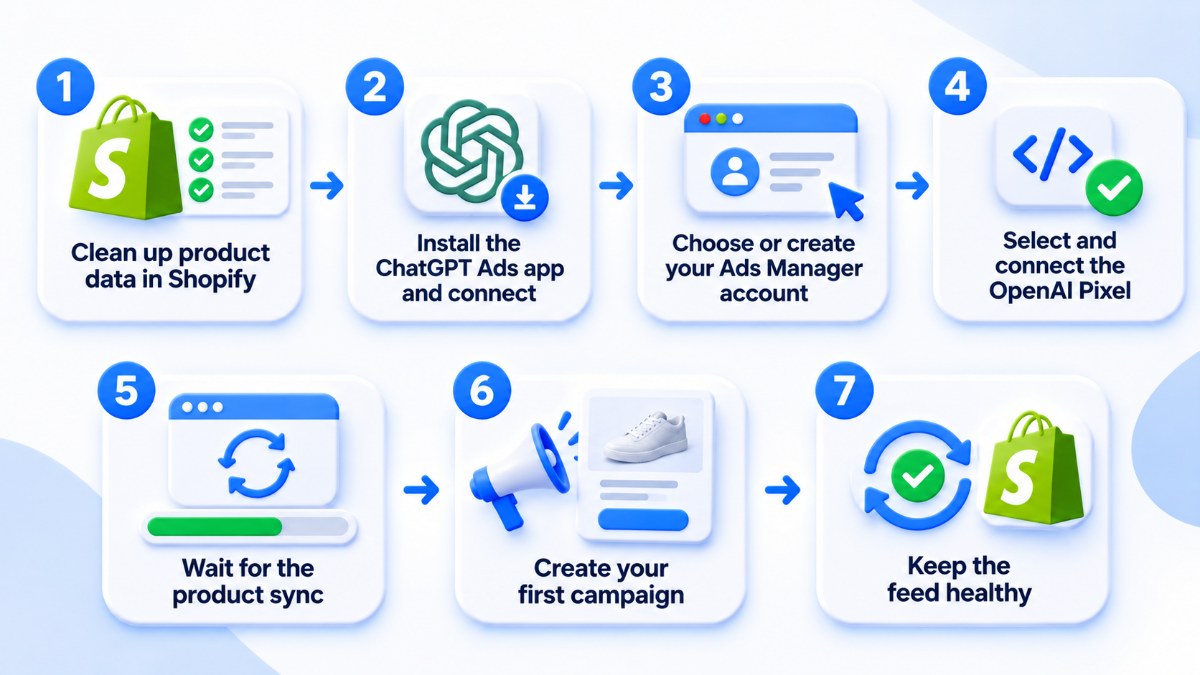
Step 1: Clean up your product information in Shopify
Sync is only as good as the data it copies. Before you connect anything, review the fields that ChatGPT's feed format treats as essential. OpenAI's product feed spec requires nine base fields for every item: item_id, title, description, url, brand, seller_name, image_url, availability and price. It also requires target_countries and store_country for geo tagging.
The same spec gives practical limits and formats worth checking in your Shopify admin:
- Titles and descriptions: aim for at most 150 characters for titles and 5,000 for descriptions, and keep descriptions in plain text.
- Images: the main image should be a direct JPEG or PNG URL that shows the specific variant, publicly accessible over HTTP or HTTPS (HTTPS preferred).
- Availability: accepted values are in_stock, out_of_stock, pre_order, backorder and unknown; an empty or unrecognized value rejects the row.
- Price: written as an amount followed by a three-letter currency code, for example 79.99 USD, with a decimal point and no thousands separators.
Titles deserve the most attention, because shoppers phrase requests in natural language. If your titles are short or inconsistent, learn how to enrich product titles and review the key points of an optimized shopping feed. The same fixes help your Google Shopping results too.
Step 2: Install the ChatGPT Ads app and connect your account
In Shopify, install or open the ChatGPT Ads app, then select Connect Account. The ChatGPT Ads app listing describes the app as a way to connect or create an account, automatically sync product inventory, create ads from your catalog, and track performance with a Shopify pixel and conversion events.
Step 3: Choose or create your Ads Manager account
Select an existing Ads Manager account. To create a new one, confirm your organization, account name, website, industry, country, currency and time zone. Double-check the currency and time zone, because they affect budgets and reporting.
Step 4: Select and connect the OpenAI Pixel
Select or create the OpenAI Pixel for Shopify, then connect it so eligible Shopify commerce events flow to Ads Manager. Do not skip this step. OpenAI says the Pixel and the Conversions API are key measurement tools, and the commerce events are what let campaigns optimize toward purchases instead of clicks.
Step 5: Wait for the product sync
After the connection, your inventory syncs to the ChatGPT Ads product feed. OpenAI notes that sync time varies with catalog size and system conditions, so large catalogs may take longer. Refresh Ads Manager once the sync finishes.
According to OpenAI, the integration syncs three things: product inventory and catalog information for product ads, store updates that keep product information current, and commerce events through the connected Pixel for tracking and optimization.
Step 6: Create your first campaign
You can launch from inside Shopify or from Ads Manager. In Shopify, open the ChatGPT Ads app and click Create Campaign, then:
- Enter a campaign name, budget, optimization event and targeting.
- Choose the ad type: all products, a single product, or your website.
- Select the products to include.
- Review the ad preview.
- Select Create and launch the campaign.
OpenAI notes that Ads Manager offers some options Shopify does not, such as finer budget amounts. Start small: a handful of best-selling products, a modest daily budget and one clear conversion event.
Step 7: Keep the feed healthy
Your sync keeps product information current as your store changes, so the best way to protect results is to keep Shopify itself accurate: prices, stock levels, titles and images. If you ever disconnect, note what OpenAI says happens: disconnecting stops future product updates from your store, does not delete your Ads Manager account or existing campaigns, and may pause or stop existing campaigns that depend on the disconnected feed. You can manage the connection from Settings in the app, where you can review the connected account, manage the product feed and update the Pixel.
If you need a manual product feed instead
Not every store uses the app. If you run another platform, or you manage feeds with a third-party tool, you can send a file. OpenAI's Ads product feed guide describes the key rules:
- Set is_ads_eligible to true on each product that Ads should process, and keep price and availability current for those products.
- Files must be UTF-8 CSV, and product page and image URLs must be public HTTPS URLs.
- SFTP is the main delivery method for catalog files, with files placed in the SFTP root and no nested folders. An API is available to create feeds and to send delta updates that change title, price or availability on existing items.
- Processing is asynchronous. A successful transfer only confirms the upload, and a completed upload does not guarantee that every product will serve.
Review decisions show as approved, pending or rejected, and rejection reasons are available through the API. Typical upload problems include a missing required column, an invalid value such as a malformed price or currency code, an unsupported file type and an invalid SFTP directory layout. To remove a product, set is_eligible_search to false or leave it out of your next full snapshot, as described in OpenAI's feed overview.
For new e-commerce partners, Digiday reported that OpenAI asks for a sample of 100 products before the full catalog is shared. If your feed already follows Google's product data format, OpenAI says it can use that formatting once it confirms your registered feed supports it, which saves you from renaming every column.
Troubleshooting: products missing from Ads Manager
If products do not appear after the sync, OpenAI recommends checking these items in order:
- The Shopify app is connected to the correct Ads Manager account.
- The product feed has finished syncing.
- Your Shopify products are active and available.
- OpenAI Pixel for Shopify is connected.
- You refreshed Ads Manager after the sync completed.
- You are using Chrome or Safari.
If the problem persists, contact ads-support@openai.com and name the Ads Manager account you are trying to connect.
Why feed quality matters in a conversation
When a user asks ChatGPT what to buy, the model builds a response from the whole conversation, not from a keyword list. That changes what relevant product data looks like. Shoppers want to find, browse and compare items in plain language, so a title like "Women's waterproof trail running shoe, size 8" gives the system more to work with than a bare model number.
Ads are shown to people on the free tiers, and OpenAI says they are matched to the conversation topic, past chats and past ad interactions. The intent signal comes from the question, not from a search term you bid on. Context matters more than exact match.
For a retailer or advertiser, that means three habits. First, provide full product content: material, size, color, use case and category in the title or description, like a knowledgeable salesperson would. Second, use ChatGPT yourself to test a few shopping questions and see how similar products are described. Third, plan a monthly review of titles for your top sellers, and compare what you changed with campaign results before you roll the same edits out to the rest of the catalog. A structured product record, not marketing copy, is what lets the system match your item to a request.
Make one catalog work for every channel
A good catalog serves ChatGPT, Google and any other surface that reads product data. Keep one clean source of truth, then adapt it for each channel. If you need to add attributes without touching your store, a supplemental feed is one way to do it in Google Merchant Center, and product labeling helps you group items by margin or season. For a wider view of how AI surfaces choose products, read our guide to AI shopping visibility, and for a broader checklist see Google Shopping feed optimization.
Frequently asked questions
Does syncing my feed cost anything?
OpenAI's setup page does not list a fee for the sync. You pay for ads based on the budget and bidding you set in your campaigns.
Are my Shopify products already in ChatGPT without the app?
For organic shopping answers, OpenAI said Shopify merchants' product data is integrated through Shopify Catalog with no extra work. The app is for paid product ads.
Can I choose which products are advertised?
Yes. In the Shopify campaign flow you pick all products, a single product or your website, and you select the products to include.
Final thoughts
Syncing your Shopify catalog takes minutes, but results depend on the quality of the data you sync. Clean titles, accurate prices and clear images help every channel at once. Clarmix feed enrichment improves product data at catalog scale, so your Shopify products are ready wherever shoppers ask.
Sources
Join our monthly tips!
Get fresh insights on Google Shopping optimization delivered straight to your inbox.