
What is a labelizer and how to use custom labels for google shopping
.jpeg)
The article discusses the use of custom labels in Google Shopping to enhance product segmentation, campaign management, and performance optimization through various metho
A labelizer is a tool that sorts every product in your catalog into performance segments, then writes those segments into the custom labels of your Google Shopping feed. It reads campaign performance from your Google Ads account, applies a rule, and updates the values automatically. The purpose is to let you bundle products by how they perform rather than by what they are, so you can set different bids and budgets for each segment. Adding custom labels to your Google Shopping feed is the field you use to make that split possible.
The term started as a brand name and is now used for the category. This guide covers what a labelizer does, how custom labels work in Google Merchant Center, why assigning custom labels by hand stops working at scale, how the tools differ from feed management tools, and how to decide whether you need one.
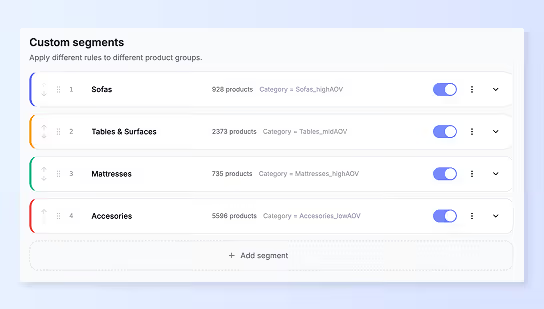
What a labelizer does with your product data
The mechanism has four steps and they run in the same order every time.
It connects to your Google Ads account and pulls product performance at item level. Clicks, cost, conversions and revenue for each specific product.
It applies a classification rule. Most tools use two inputs. One for volume, usually a click threshold. One for efficiency, usually target return on ad spend. A product with enough clicks and a good return lands in one group. Enough clicks and a poor return lands in another. Too few clicks to judge lands in a third.
It writes the value into a custom label attribute in your Google Merchant Center account, normally through a supplemental data source so your primary product feed stays untouched.
It repeats, usually daily. A product that improves moves to a better group without anyone touching it. ProductHero, which named the category, states that a product classified as a Villain one day can become a Hero the next, and that new products receive a label within 24 hours of being added.
That last step matters more than people expect. A label that refreshes itself is a different thing from a label you set once. It turns a static field into a live signal your campaigns can react to.
How custom labels work in google merchant center
Before the tools make sense, the underlying attribute has to.
The five custom label attributes and their limits
Google gives you five custom labels per product, numbered custom_label_0 through custom_label_4. Each product can hold one value per attribute. Each account supports up to 1,000 unique values for each attribute, with a ceiling of 5,000 values in total across all five.
You define what each field means. Google does not. That is the whole design. One advertiser might set custom_label_0 to season, another to margin band, another to stock age.
Two limits are worth knowing before you start. Custom labels have no effect on which searches your Shopping ads appear for, and shoppers never see them. Product title, description and product attributes drive matching. Custom labels exist for segmentation and reporting only. And the attribute is supported in Performance Max, Shopping and Demand Gen campaigns. Display campaigns with dynamic remarketing use different fields.
Where custom labels allow you to segment campaigns
Once every item carries a value, custom labels allow you to build listing groups around that value, split budget across different campaigns, apply a separate bid strategy to each group, and read campaign performance by segment rather than by product category.
That is the payoff. Most Google Shopping campaigns treat every item the same. The same focus applies to a bestseller and to a product that has not sold in six months. At low spend that is tolerable. Past a few hundred products it is not, because a blended return of 4x can contain one group at 12x and another at 0.5x. The average looks fine. The distribution is the problem.
Segmenting your products makes that distribution visible, and visible problems get fixed.
Why assigning custom labels manually breaks at scale
There are three ways to set custom labels without a tool. Each has a ceiling.
Creating a custom label by hand
The simplest method. You add a column to your product data file, name it custom_label_0, and enter a value for every item. Many e-commerce platforms let you add a custom field per product and map it into the feed.
Creating a custom label this way suits stable attributes. A winter coat stays a winter product. Season does not change on its own. You set the value once and revisit it twice a year.
It also suits small catalogs. With 50 or 200 items, filling a column takes an afternoon. With 20,000 it is not a real option, and adding custom labels to your product feed by hand becomes a job nobody volunteers for.
Using a spreadsheet to set custom labels
A step up. You export your product catalog, calculate values with formulas, and upload the sheet back as a data source. Google Merchant Center can fetch from Google Sheets on a schedule, so the values update without a manual re-upload.
This helps because the logic lives in the formula rather than in someone's memory. A margin band can be derived from cost and price columns. Anyone on the team can read the rule and understand why an item landed in a specific group.
The weakness is freshness. A spreadsheet only knows what you paste into it. To label by product performance you would export a Google Ads report, paste it in, recalculate, and repeat. Weekly is unrealistic. Monthly is optimistic. Most accounts do it twice and then stop.
Feed rules in google merchant center and their limit
Feed rules are the native automation layer and they are free. Google's documentation gives the example of applying a value to custom_label_0 based on price range. The setup takes minutes. Open the attribute rules in your data source, set your conditions, and the rule runs on every feed refresh.
Feed rules scale to any catalog size. A rule does not care whether it evaluates 500 items or 500,000, and we recommend them as the default starting point.
They have one hard limit, and it is the reason the labelizer category exists. Feed rules can only reference data already in the feed. Price, product type, brand, availability, and any custom fields you supplied. Google Ads performance is not in the feed. So no feed rule can produce a label based on ROAS, cost or conversions, because the data it would need is not there.
Every manual method sorts products by what they are. None of them can sort products by how they perform.
How a labelizer differs from feed management tools
This causes the most confusion, and the honest answer is that the line has moved.
Feed management tools such as Channable, DataFeedWatch, Feedonomics and Lengow exist to get product data out of your store and into ad platforms and marketplaces. They handle mapping, transformation rules, category taxonomies, product title formulas and multi channel distribution. They are infrastructure. If your product data is messy or you sell across several channels, a feed manager is the right tool and a labelizer will not replace it.
The traditional split was simple. Feed managers read your catalog. Labelizers read your campaigns.
That split has blurred. Channable, a Dutch feed management and PPC automation platform, added an Insights layer that connects to Google Ads and marketplace accounts to pull clicks, impressions and ad spend, then exposes a segmentation value inside its rules engine. Channable documents three ways to apply the result: through the main data feed, through a separate data feed, or through its Google Ads generator. So a feed manager can now do performance based labelling.
What still differs is depth. A labelizer is built around segmentation specifically. That usually means tunable thresholds, more groups, margin as an input, and reporting designed around the segments themselves. A feed manager treats segmentation as one feature among hundreds.
The practical read. If you already pay for a feed manager with performance segmentation, use it before adding another tool. If you need custom thresholds, margin based logic, more than four groups, or visibility into where Performance Max actually spent, that is where a dedicated tool earns its place.
%20(1).png)
What the labelizer category looks like now
Several tools do this, and the models differ more than the marketing suggests.
ProductHero uses four labels: Heroes, Sidekicks, Villains and Zombies. Classification runs on two inputs the advertiser controls, a click threshold and a ProductHero target ROAS figure that is deliberately separate from the target ROAS in your Google Ads account. ProductHero's own analysis of its advertiser base reports that more than 50% of Shopping advertising costs go to underperforming products, and that 10% or fewer of products drive 80% of sales. Those are vendor figures rather than independent research, so treat them as directional.
Clarmix uses segments including Profitable, Costly and Zombies, exposes the underlying calculation so thresholds can be changed, and breaks Performance Max spend down by channel. Channel level reporting is a different problem from labelling, but it is often the reason people start looking for a labelizer.
Label Up, listed on G2, segments product feeds into Champions, Potentials, Wasters and Sleepers, and bundles a CSS offering alongside it. The bucket names change. The underlying model does not.
The variables worth comparing are narrow. Whether you can change the thresholds. Whether margin can be an input or only revenue. How many groups you get. How often labels refresh. Whether the tool writes through a supplemental source or wants control of your primary feed. Whether you get any reporting on Performance Max beyond the label itself.
We compared the options in our breakdown of ProductHero alternatives for Google Shopping management.
Common use cases for custom labels in google shopping campaigns
These use cases apply whichever method you pick.
Seasonality, summer and winter product segments
The classic example. Set custom_label_0 to season with values such as Summer, Winter, spring and autumn. Then run different campaigns per season, or simply exclude out of season items so they stop spending budget in July. Seasonality is a stable attribute, so a feed rule handles it and no tool is needed.
Margin, price and product type
Margin is the most commercially useful segment. Group products into high, medium and low bands. A 6x return on a 15% margin item and a 6x return on a 60% margin item are not the same business outcome, and your bid strategy should reflect that.
Price tier separates cheap accessories from expensive core products, because customer behaviour differs sharply across different product bands. Product type is already its own attribute, so do not waste a custom label slot duplicating it.
Sales performance, clearance and bestsellers
Bestsellers deserve their own budget and aggressive targets. Clearance stock deserves visibility while it lasts and nothing after. Stock level is worth labelling too, so you can reduce bids before you sell out and stop paying for clicks on an unavailable listing.
Product age separates new arrivals from established items. New products have no conversion history, so they need protected budget and time to gather data before any performance label means anything.
How to add custom labels to your product feed in six steps
Follow these in order. The whole setup takes under an hour for a first label.
- Decide what the label means and write it down. Pick one dimension, such as season or margin band. Document that custom_label_0 is season somewhere the whole team can see, and include the value list, because five unlabelled fields become unreadable within months.
- Choose your method. Use feed rules if the logic depends on product attributes you already have. Use a tool if it depends on Google Ads performance data.
- Set the values. In Google Merchant Center, open your data source, add an attribute rule targeting the custom label field, set your conditions, and save.
- Verify the field is populated. Filter by the attribute in Merchant Center and confirm the item count matches what you expected. This information takes two minutes to check and saves weeks. A rule that silently matched nothing is a common and expensive failure.
- Build the campaign structure. In your Google Ads account, open the listing group or asset group, choose a selection of products, and select the custom label value. This is the step that makes the label do anything.
- Set different targets per group. Assign separate budgets and bid targets to each segment, then review campaign performance by label after two to four weeks.
Do you need a labelizer for your product catalog
Three questions settle it.
How many products do you advertise? Under a few hundred, feed rules and a spreadsheet will hold, and the performance spread is usually narrow enough that segmentation adds little. Above a few thousand, manual maintenance stops being possible.
How much do you spend? The value of a labelizer is proportional to the budget it redirects. At low four figure monthly spend a subscription rarely pays for itself. At five figures it usually does.
Does your segmentation depend on performance data? This is the deciding question and it is independent of the other two. If you want to group products by season, price or product type, feed rules do it for free. If you want to group by ROAS, wasted spend, or margin adjusted return, no feed rule can produce that value.
Answer yes to the third question and catalog size only changes how urgently you need a tool.
Best practices for custom labels and campaign performance
Reserve one label for testing. Four for production, one for experiments, so you are not rebuilding a live campaign structure to try an idea.
Keep values coarse. Three to six values per label is the useful range. Twenty values create product groups too small to gather meaningful data, and the segmentation stops informing anything.
Do not duplicate existing product attributes. Brand, product type and product categories are already separate fields you can segment on. Spending a custom label on them wastes one of five slots.
Apply values consistently. A product missing a value falls outside every listing group built on that label, which usually means it stops serving and nobody notices for weeks.
Refresh performance labels daily. Attribute based labels can follow your normal feed schedule. Performance based ones age fast, because a product's classification can change within a week.
Rebuild campaigns around the label. The value is in the structure you build on top of it, not in the field itself.
What a labelizer will not improve
Worth being clear about the limits, because the category gets oversold.
It does not fix your product data. Poor product titles, missing attributes and thin descriptions hurt visibility, and a label does nothing about any of it. Optimize the feed first.
It does not change which searches your Shopping ads appear for. Custom labels play no part in query matching.
It does not restructure your campaigns for you. Tools that write labels into a feed with no campaign structure waiting to receive them change nothing. This is the single most common reason people conclude a labelizer did not work.
It does not fix broken conversion tracking. If your revenue data is wrong, the segments will be wrong, and the tool will allocate budget confidently against bad numbers.
Frequently asked questions
Is labelizer a brand name or a generic term? Both. It is ProductHero's product name and it is now used generically for any tool that writes performance based custom labels to Google Merchant Center.
How many custom labels can I use? Five per product, numbered 0 to 4, with up to 1,000 unique values per attribute and 5,000 across the account.
Can I set custom labels based on ROAS using feed rules? No. Feed rules only reference data already in your product feed, and Google Ads performance is not in the feed.
Can I build a labelizer myself? Yes, using the Google Ads API and a scheduled script that writes a supplemental feed. Several agencies do exactly this. The build is straightforward. The maintenance is what pushes teams toward a tool.
Do custom labels work in Performance Max? Yes. Performance Max, Shopping and Demand Gen all support the attribute, which makes it one of the few structural levers available in a PMax campaign.
Will this work with no conversion history? No. Classification needs data. New and low traffic items sit in an unclassified group until they accumulate enough clicks to judge.
Where to start
Do not buy a tool first. Check whether feed rules solve your problem, because if your segmentation is based on price, product type or season, they will, and they cost nothing.
If you have already hit the wall where every useful segmentation idea depends on data the feed does not contain, that is your signal. Run one segment manually before committing. Export a product report from Google Ads, find the items that spent the most with the fewest sales, exclude them from your main campaign for two weeks, and watch what happens to blended return.
If that test moves the number, automate it. If it does not, the problem sits elsewhere in the account and a labelizer will not find it for you.
Join our monthly tips!
Get fresh insights on Google Shopping optimization delivered straight to your inbox.

.jpeg)
.jpeg)